For a Samsung Smart Remote, separate battery or charge checks from pairing when power and other buttons behave differently. Log set-top-box control separately.
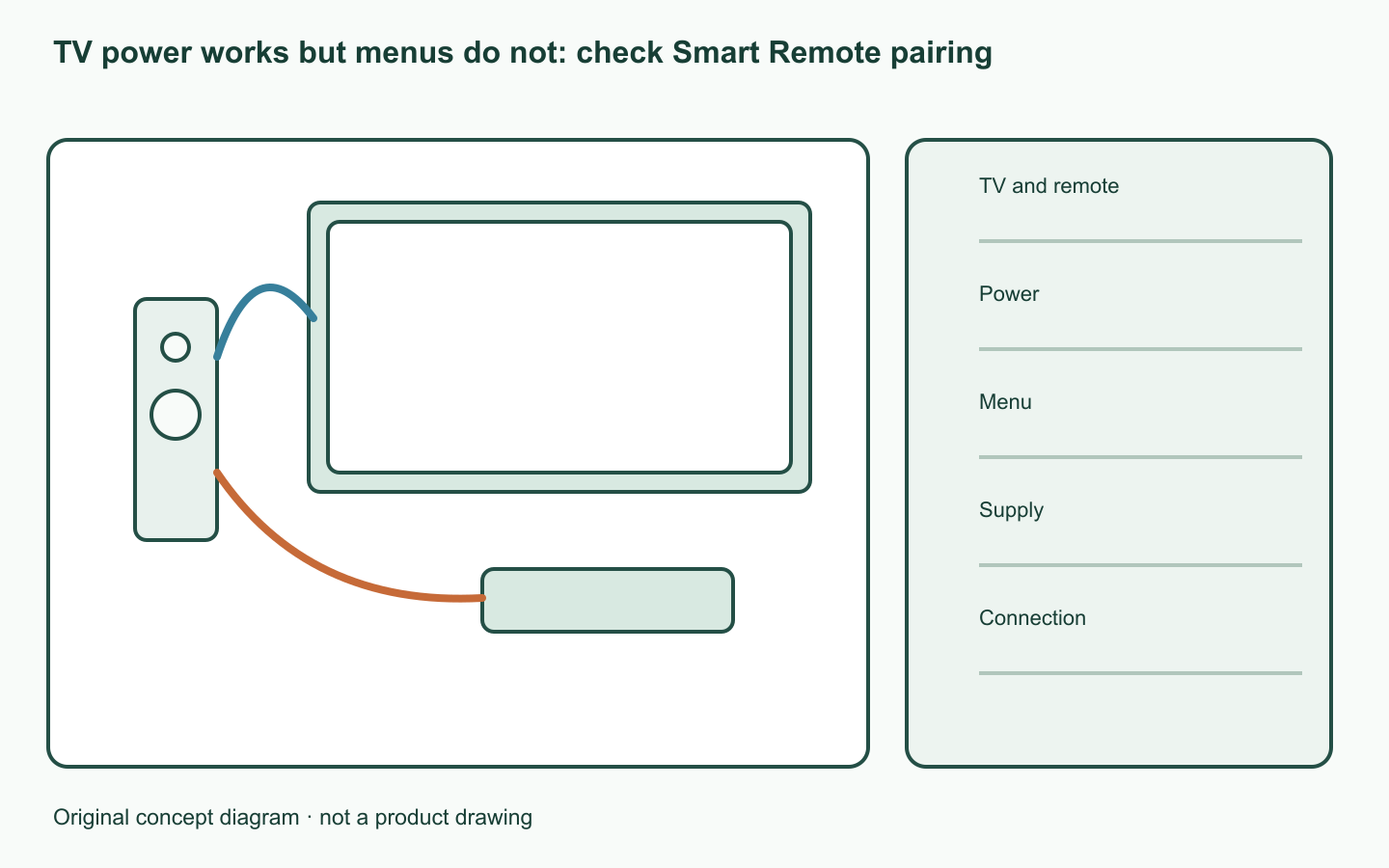
Identify TV and remote models
Record full TV model, remote code and replaceable-battery or SolarCell type. Test menu access separately from power.
Use only the supported pairing sequence
Samsung UK instructs users of supported Smart Remotes to turn the TV on, then hold Return and Play/Pause simultaneously for more than three seconds. Follow the on-screen pairing instructions. Different button layouts require the matching manual.
Record button responses
After battery/charge checks, record the on-screen pairing message. Failure to see a signal through a phone camera alone does not prove remote failure.
| Check | Record |
|---|---|
| TV and remote | Model, market and remote code |
| Power | Works / no response |
| Menu | Home and direction-button response |
| Supply | Battery or charging check |
| Connection | Pairing message and external device |
Separate TV and external-device control
If TV menus work but the set-top box does not, check external-device control setup separately. Send model and button results to Samsung if pairing does not resolve it.
A worked example
Hypothetical case: Power works but Home does not. Before buying a remote, record supported-model charge and pairing results. Keep set-top-box response on a separate line.
Official sources checked
Official sources checked on 12 October 2026. Apply the cited model and market conditions. Examples are hypothetical records, not hands-on tests.